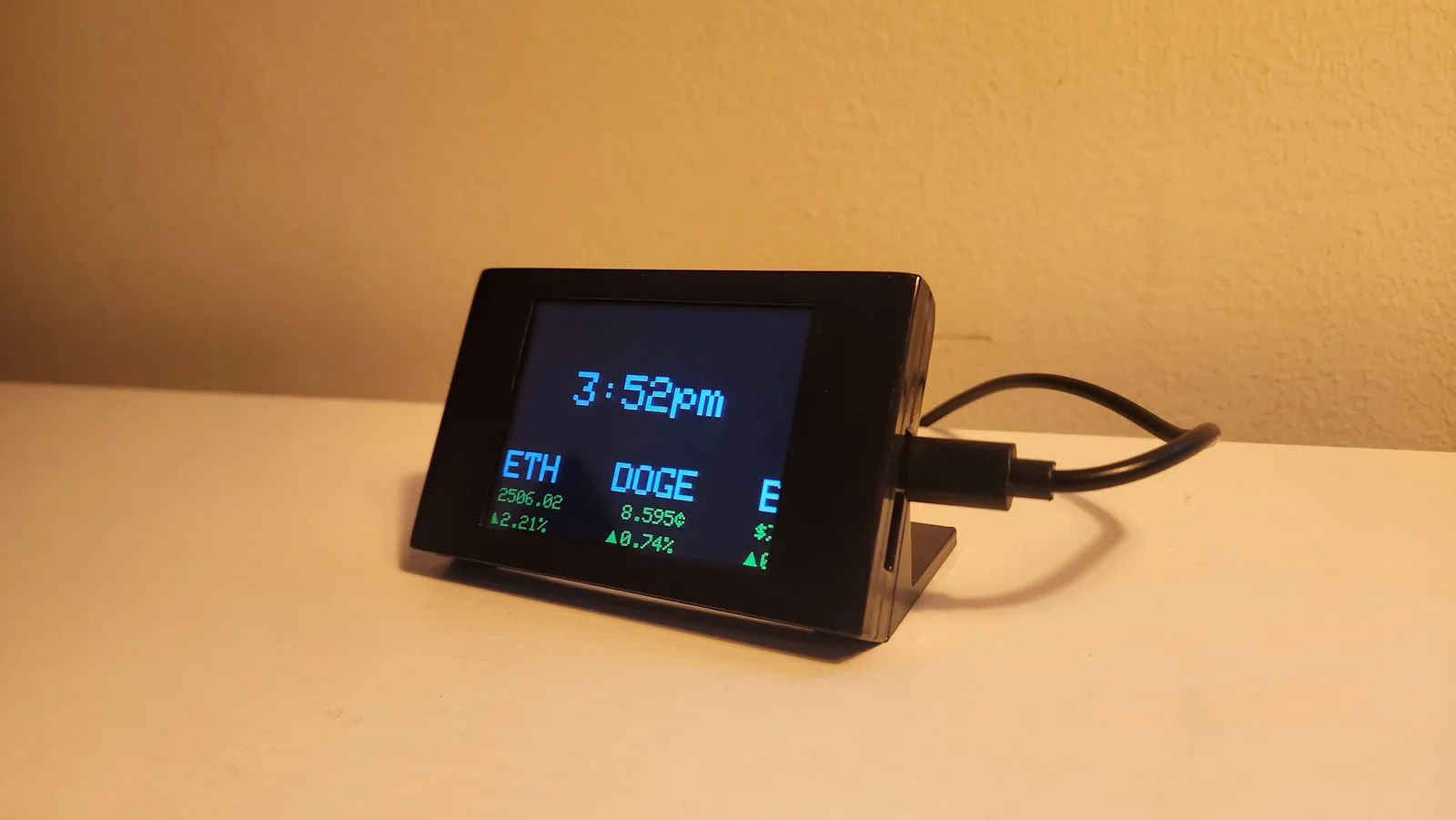
From Wi-Fi to your watchlist
- Connect to Wi-Fi. Power the device by USB-C, choose your 2.4 GHz Wi-Fi network, and enter its password on the touchscreen.
- Add a stock or cryptocurrency. Choose the asset type, enter its symbol, and let DeskTicker check it online before saving.
- Display prices and percentage changes. Select a static view or a scrolling watchlist. Green and red indicate the direction of daily price movement.
- Refresh automatically. The ticker retrieves updated market data over Wi-Fi. Saved assets and display preferences persist across power cycles.
Does DeskTicker require a computer?
No. Setup and everyday controls are on the device. After connecting it to Wi-Fi, DeskTicker retrieves data on its own; you do not need to keep a phone or computer connected. It still needs power and an internet connection to retrieve new market prices.
Manage assets from the touchscreen
Add or delete assets
Add stocks or coins with the on-screen keyboard. To delete an asset, select it and confirm the selection. Supported symbols are validated online; the support form is available for missing or unrecognized symbols.
Set custom names and change the order
Rename an asset to give it a custom display name of up to seven letters and numbers. To reorder a watchlist, select two different assets to swap their positions.
You can keep stocks and cryptocurrencies in the same list.
Choose how the display behaves
- Static view: show one asset at a time and choose how long it remains on-screen. You can also hold an asset on-screen and move between assets manually.
- Scrolling view: move several assets across the display and adjust scrolling speed and spacing.
- Refresh timing: adjust how often market information refreshes. This controls data retrieval, while cycle timing controls how long an asset is displayed.
- Timezone: set the displayed time to match your local time.
- Screen orientation: use the Flip Screen option to reverse the display orientation.
The site documents adjustable refresh timing but does not specify market-data latency. The display is useful for keeping prices in view; it is not a substitute for confirming an execution quote on a trading platform.
How do firmware updates work?
DeskTicker checks for newer firmware at startup. You can also start an update check from settings. Over-the-air (OTA) updates download and install over Wi-Fi without connecting the device to a computer.
Keep power connected while an update installs. The device restarts after installation.
Try the controls before choosing one
The interactive user guide demonstrates setup, watchlist tools, display settings, and updates. It uses generated example prices, so it shows how the interface behaves rather than providing live market data.
For a specific symbol or setup question, contact product support. If you are still choosing a type of display, start with the display comparison guide.
View the current DeskTicker listing
Check the current price, availability, and delivery details on Etsy. Purchases take place on the marketplace.
View DeskTicker on Etsy